Teaching Strategies Family
- 3.0
- Rating
- 100.00K
- Installs
- Free
- Price

 Analysis by App-foxy
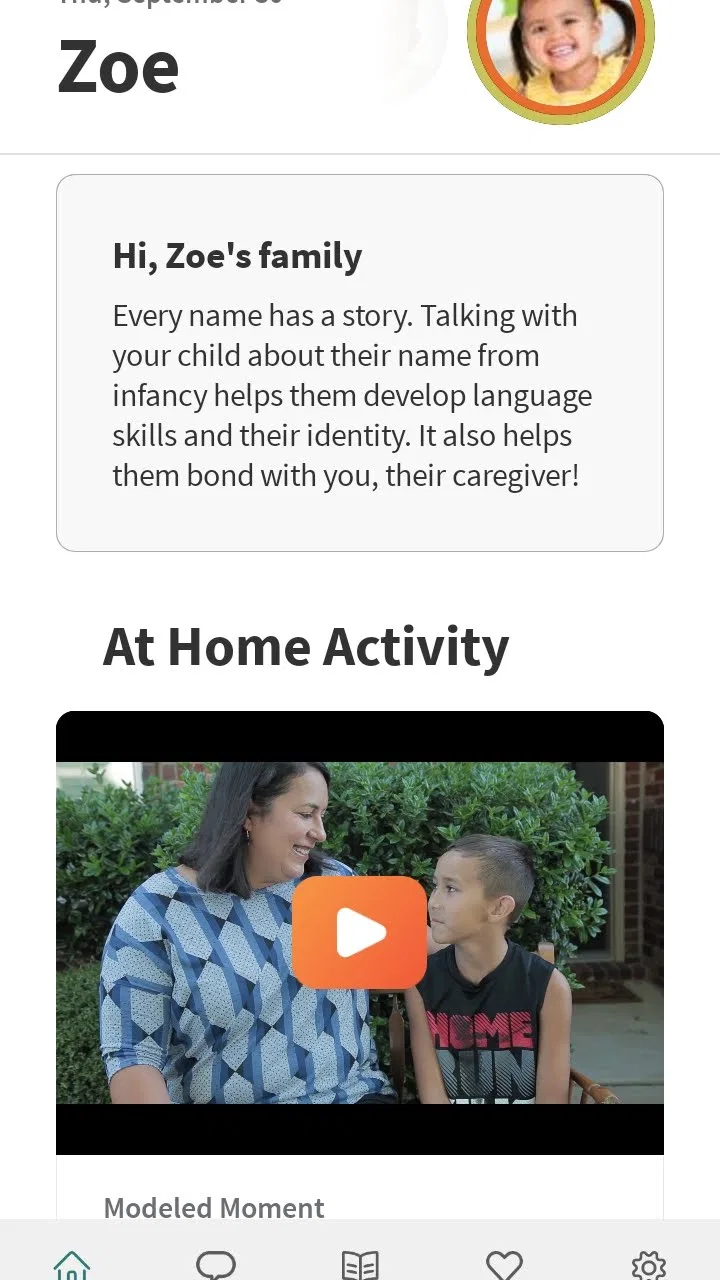
Teaching Strategies Family is an education app from Teaching Strategies, LLC that aims to make communication between families, teachers, and caregivers easier. I approached it less like a traditional learning app and more like a shared connection point around a child’s day. That distinction matters: its value depends heavily on whether the child’s school or care provider uses the same system consistently.
In my experience, the biggest question is not whether the app is free or difficult to open. It is whether your child’s classroom has invited you into the right communication flow. When that connection is working, the app can give families a more direct way to stay involved. When it is not, the experience can feel confusing even though the phone itself is working normally.
Where families usually get stuck
The app belongs to the education category, carries an Everyone age rating, and is free to use. It has been available since July 14, 2017, and the current version is 16.7.20. Those details make it approachable for a broad range of households, but they do not remove the practical dependency on a participating teacher or caregiver.
You May Also Like

 Blood Strike: 2.5 Anniversary
Blood Strike’s Loadouts Turn Every Drop Into a Tactical Gamble
A close look at Blood Strike’s custom loadouts: how fast access to signature weapons reshapes its battle royale rhythm, rewards preparation, and narrows the gap between fights.

 Pandora - Music & Podcasts
Pandora’s Music Is Easy to Start, but Harder to Recover
Pandora’s strength is its low-effort path from a seed to a station. Its weak spot is how much confidence it asks you to place in connection, setup, and quiet recovery.

 8 Ball Pool
 Is Built on Rivalries, Rematches, and Routine
A close look at the rivalries, rematches, shared routines, and unanswered safety questions that turn a quick pool match into a persistent mobile community.

 Samsung Music
’s Quiet Strength Is Playing What You Already Own
Its reach comes less from spectacle than from dependable access to a personal library. That simplicity is both the app’s strongest retention engine and its ceiling.

 AccuWeather: Weather Radar
AccuWeather Review: A Quick, Clear Forecast for Everyday Decisions
For everyday plans, the best forecast is the one you can understand quickly. AccuWeather makes rain timing, radar, and local conditions easy to act on, with a few trade-offs.

 Hill Climb Racing
Why Hill Climb Racing Still Turns Crashes Into One More Run
A tiny car, a bumpy hill and one more upgrade: Hill Climb Racing keeps resurfacing because its simple chaos makes every near-miss feel personal.
More From Our News Desk



A common point of friction is expecting the app to behave like a public classroom directory. It does not make much sense as a standalone download if there is no school, classroom, or caregiver connection waiting for you. I would first confirm with the child’s teacher or care provider that the family account should be active and that the contact information they have matches the information you are using.
Another stumbling block is assuming that every family member will automatically see the same content. In real households, one parent may complete the initial setup while another expects immediate access on a separate phone. I recommend treating access as a household coordination task: decide who will complete the first sign-in, keep the relevant invitation or account details nearby, and then add other caregivers only through the process the child’s provider has given you.
Notifications can also create false alarms. If a message or classroom update does not appear immediately, that does not necessarily mean the app has failed. The teacher may not have posted it yet, the classroom connection may still be pending, or the phone may be delaying notifications. I find it more useful to compare the app with what the teacher says was sent rather than assuming that an empty screen is automatically a technical problem.
The app has an average rating of 3.0 from around 222 ratings, with around 108 written reviews. I would read that as a sign to keep expectations realistic. It may work well for families whose schools use it actively, while users without a clear invitation or dependable classroom participation may judge it much more harshly.
What to check before blaming the app
Before reinstalling anything, I would check the basics in a deliberate order. Confirm that the phone has a stable internet connection, close and reopen the app, and make sure the account details are entered exactly as the school or caregiver supplied them. Small differences in an email address or phone number can prevent a connection from appearing even when everything else looks correct.
I would also ask the teacher a very specific question: “Which classroom or family connection should I see after signing in?” That is more useful than simply saying that the app is not working. If the teacher can describe the expected destination, you can tell whether the problem is an account mismatch, a missing invitation, or a display issue.
Because the minimum operating system is Android 7.0, older devices may still meet the stated requirement, but that does not guarantee a smooth experience on every handset. If the app opens but behaves strangely, check whether the phone has enough free storage and whether its system software is stable. I would avoid clearing account data until I knew the sign-in details, since a reset can create more work for a parent who is already unsure which credentials belong to the classroom connection.
On a shared family device, check which person is currently signed in before changing anything. A parent may think updates are missing when the phone is simply showing another household member’s account. This is one of the less obvious sources of confusion with family communication tools: the problem is not always the message feed, but the identity attached to the session.
A setup routine that saves time
My preferred setup routine is simple. First, install the app on the device the primary caregiver checks most often. Next, complete the connection while the teacher or caregiver is available to confirm the classroom details. Then, open the app again later and verify that the same connection remains visible after closing it. That last step helps distinguish a temporary screen problem from an account that was never fully linked.
I would keep the first setup focused. Do not immediately change every phone setting or reinstall the app because one expected update is missing. Instead, establish whether the basic relationship with the classroom exists. Once that is clear, you can decide how often to check the app and whether another trusted caregiver needs access.
For families with several children, organization becomes especially important. Use a consistent mental check before reading anything: identify the child or classroom associated with the screen, then review the newest communication. This reduces the chance of confusing one child’s information with another’s, particularly when updates arrive close together.
There is also a useful social step that many people skip: agree with the teacher on which information belongs in the app and which matters should be handled another way. A family communication app is not necessarily a replacement for urgent contact, attendance procedures, or a direct conversation. Knowing the intended role of the app prevents missed expectations on both sides.
Recovering a broken workflow
When something goes wrong, I would recover the workflow rather than repeatedly tapping the same screen. Start by identifying what still works. Can the app open? Can you reach the sign-in area? Is the classroom visible but empty? Does the issue affect one device or every family device? Each answer narrows the likely cause.
If the app opens but a recent update is not visible, close it completely and reopen it after confirming the connection. If that changes nothing, ask the teacher whether the update was actually published to the family channel. This is a practical distinction: a teacher may have prepared information without sending it, or may have shared it through a different communication method.
If the classroom connection disappears, avoid creating several new accounts in a hurry. Multiple sign-ins can make it harder to know which account the school recognizes. I would first return to the original account details, then contact the classroom or provider if the connection still does not return. A teacher or caregiver may need to verify the family relationship on their side.
For a login problem, write down the exact message shown on screen before trying anything drastic. “Incorrect details,” a blank page, and a loading failure point to different kinds of trouble. Restarting the phone and checking the network are sensible first steps. Reinstalling is a later step, not my opening move, because it does not correct an invitation or account mismatch.
When support is needed, provide useful context: the device type, operating system, the account being used, the child’s classroom, and the exact action that failed. Do not send passwords or private child information in an open message. A clear description helps the school or app support team investigate without requiring you to repeat the entire story.
When the app is not the cause
Some frustrations come from the communication process around the app. A teacher may use the platform only for selected updates, a caregiver may post at a different time than families expect, or a school may still rely on email and paper notices for certain matters. In those situations, the app can appear unreliable even though it is simply being used as one channel among several.
I would not use this app as the only source for time-sensitive information unless the child’s provider explicitly says that it is the official channel. For pickup changes, absences, health concerns, or urgent schedule questions, follow the school’s stated procedure. The app is most useful for staying connected to routine classroom communication, not for guessing how a particular provider handles emergencies.
Device settings can create another misleading symptom. Battery-saving behavior, restricted background activity, or muted notifications may make updates seem absent until the app is opened manually. Since these controls differ across Android phones, I would check the notification and battery settings for the app if messages appear only after launching it. The exact menu names vary, so the goal is simply to ensure the phone is not silencing the channel.
Privacy is also a reason to be thoughtful about where you use it. A family communication tool may involve information about a child, so I would avoid signing in on a public device and would lock a shared phone when it is not in use. This is not a criticism of the app itself; it is a sensible habit whenever a digital service connects families with classroom information.
How it compares with familiar alternatives
Compared with ordinary email, the app can feel more focused when the school actively organizes family communication around a child’s classroom. Email is flexible and familiar, but classroom messages can become buried among work, shopping, and unrelated notifications. A dedicated family connection can make the school relationship easier to locate.
Compared with paper notices, the app offers a more convenient place to check information when you are away from home. Paper still has one advantage: it does not depend on a phone, account, battery, or internet connection. Families who prefer a physical reminder may want to keep using both methods rather than treating the app as a complete replacement.
Compared with general messaging services, Teaching Strategies Family is more appropriate when the child’s provider has chosen it as part of the classroom relationship. A general messenger may be faster for a direct question, but it may not preserve the same connection to the child’s educational setting. On the other hand, if your school does not use this particular platform consistently, a different communication method will probably be less frustrating.
The app has passed the one hundred thousand install mark, which suggests that it is used beyond a tiny group of families. Still, adoption alone is not the deciding factor for an individual household. The important test is whether your child’s classroom uses it regularly and whether teachers respond through it in a predictable way.
Who will benefit most
I think it is a good fit for parents and caregivers who want one education-focused place to stay connected with a child’s teachers. It is especially practical for households where work schedules make face-to-face conversations difficult and where checking a phone is easier than keeping track of printed notices.
It can also help families who share caregiving responsibilities. A grandparent or another approved caregiver may be able to stay informed without relying on a parent to forward every classroom update, provided the child’s provider supports that arrangement. The key is to establish access carefully rather than passing around one person’s sign-in details.
I would be more cautious if you want a broad learning library, independent lessons, or a tool a child can use without school involvement. This is not the app I would choose for self-directed study or for replacing a structured learning platform. Its usefulness comes from the family-to-classroom connection, not from entertaining activities or a large collection of standalone courses.
It may also be the wrong choice for a family whose school prefers phone calls, email, or another platform. In that case, installing it adds another place to check without improving communication. I would follow the provider’s established system rather than trying to persuade the app to become useful on its own.
My practical verdict
After looking at the app as a daily family tool, I see Teaching Strategies Family as a connector rather than a complete education solution. Its strongest quality is its purpose: helping families remain closer to teachers and caregivers through a dedicated channel. That can be genuinely valuable when the classroom uses it with consistency.
The main trade-off is dependence on setup and participation outside the phone. A missing invitation, wrong account detail, delayed classroom post, or muted notification can make the experience feel broken. The best results come from confirming the expected classroom connection first, keeping account information organized, and treating the app as one part of the provider’s communication routine.
Teaching Strategies, LLC has kept the app available as a free education option, and its Everyone rating makes it suitable for general family use. I would recommend trying it when your child’s teacher or caregiver specifically directs you to it. I would not recommend downloading it blindly and expecting useful content to appear without that relationship.
My bottom line: use it when your child’s classroom is committed to the platform, and judge it by whether it makes that relationship easier to follow. If the school communicates elsewhere, another channel will serve you better. If the connection is active, a few careful setup checks can turn it into a practical part of the family’s school routine.
FAQs for Teaching Strategies Family
01What is Teaching Strategies Family, and who is it designed for?
Teaching Strategies Family is a family-engagement app connected to Teaching Strategies early-childhood education programs. It is designed for parents, guardians, and family members of children whose school or childcare provider uses the platform. The app helps families stay informed about classroom learning, receive updates, view shared activities or resources, and communicate more easily with educators in one place.
02How do I sign in to Teaching Strategies Family?
To use the app, your child’s school, childcare center, or teacher generally needs to invite you or provide account instructions. You may be asked to register with an email address, phone number, or access code, depending on the provider’s setup. If you cannot sign in, check that you are using the same contact information given to the school and contact the administrator for assistance.
03What can parents and guardians do inside the app?
The available features may vary according to the subscription and settings chosen by the education provider, but families can typically view announcements, classroom updates, learning experiences, photos, messages, and information about their child’s progress. Some programs may also allow families to respond to teachers, review suggested activities, or support learning at home through shared resources.
04Is Teaching Strategies Family free to download and use?
The app may be free to download from the relevant app store, but access to its services usually depends on a participating school, childcare center, or educational program. Families normally do not purchase a separate subscription directly through the app. However, schools may offer different features based on their Teaching Strategies plan, so it is best to confirm access, costs, and included services with your child’s provider.
05Is my child’s information private and secure in Teaching Strategies Family?
Teaching Strategies Family is intended for communication between participating education providers and authorized family members, so account access and privacy controls are important parts of the experience. Even so, families should review the app’s current privacy policy, use a strong password, and avoid sharing login details. Contact the school promptly if an incorrect user receives information or if you notice suspicious account activity.
Pros
- Keeps families informed about classroom activities and learning goals.
- Offers convenient access to teacher updates from a mobile device.
- Can strengthen communication between parents and educators.
- Helps parents follow their child’s progress outside the classroom.
- Useful for receiving reminders
- announcements
- and shared resources.
Cons
- Its usefulness depends on the child’s school actively using the platform.
- Some features may vary according to the teacher or school setup.
- Frequent notifications can become distracting for busy parents.
- Parents may need separate accounts for children in different classrooms.
- Requires a reliable internet connection for timely updates.

Teaching Strategies Family
Gallery